

Installation of UniMRCP server with plugins
UniMRCP servers are a standard way to connect Artificial Intelligence to Voice Applications. The Media Resource Control Protocol (MRCP) is standardized by the IETF in RFCs 6787 and 4463. UniMRCP is an open-source implementation of this protocol, seamlessly integrating with SipPulse AI to handle automatic speech recognition (ASR) and text-to-speech (TTS) requests. This document will guide you through obtaining, installing, and configuring UniMRCP to work with your SipPulse AI service.
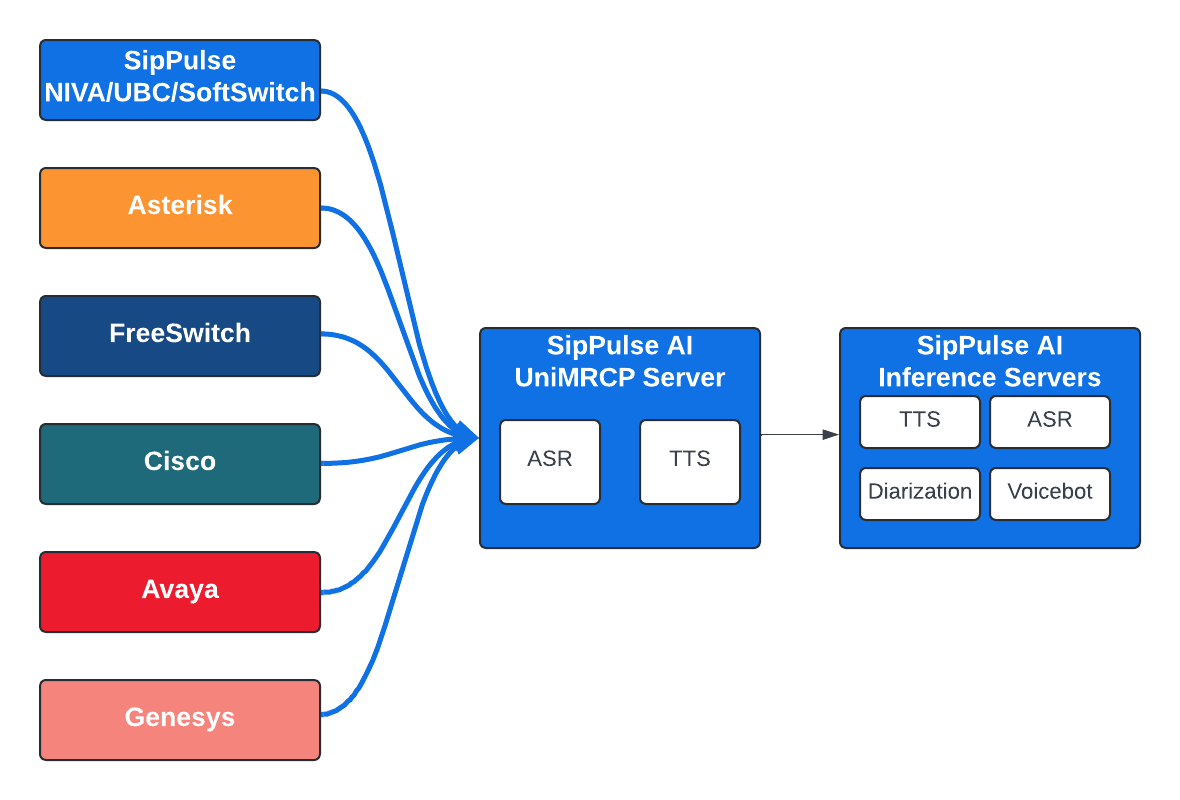
UniMRCP diagram
Installing and Configuring UniMRCP for SipPulse AI
If you're looking to supercharge your Asterisk PBX with some AI-powered magic, you're in the right place. Let’s integrate UniMRCP and turn your Asterisk into an AI-savvy communication beast.
Introduction
The preferred method of communicating with the SipPulse AI platform is through the UniMRCP modules for Asterisk. UniMRCP is an open-source implementation of the Media Resource Control Protocol (MRCP), seamlessly integrating with SipPulse AI to handle automatic speech recognition (ASR) and text-to-speech (TTS) requests. This document will guide you through obtaining, installing, and configuring UniMRCP to work with your SipPulse AI service.
Step 1: Installing dependencies
sudo apt-get install -y \
    gcc \
    autoconf \
    automake \
    pkg-config \
    build-essential \
    libtool \
    libcurl4-openssl-dev
Download unimrcp dependencies
cd ~
curl -O -J -L  https://www.unimrcp.org/project/component-view/unimrcp-deps-1-6-0-tar-gz/download
tar -zxvf unimrcp-deps-1.6.0.tar.gz
cd unimrcp-deps-1.6.0
./build-deps.sh
Step 3: Building UniMRCP
This is fork of the UniMRCP project with the SipPulse AI plugins pre-installed.
# Clone the UniMRCP repository
cd ~
git clone https://github.com/sippulse/unimrcp-sippulse-plugin

# Navigate to the UniMRCP directory
cd unimrcp-sippulse-plugin

#Install SipPulse dependencies
apt install libsamplerate0-dev libcjson-dev

# Build and install UniMRCP

./bootstrap
./configure
make
sudo make install
ldconfig
Add UniMRCP to the systemd for automatic load
Create the file unimrcp.service, add your SIPPULSE_API_KEY to the Encironment
[Unit]
Description=UniMRCP Server
After=network.target

[Service]
Environment="SIPPULSE_API_KEY=sp-..."
Type=simple
ExecStart=/usr/local/unimrcp/bin/unimrcpserver -r /usr/local/unimrcp -o 2 -w
Restart=on-abort

[Install]
WantedBy=multi-user.target
Copy the file unimrcp.service to the systemd
sudo cp unimrcp.service /lib/systemd/system
systemctl daemon-reload
systemctl start unimrcp
Verify if the daemon is loaded using:
systemctl status unimrcpYou should get something similar to:
root@unimrcp-test:/usr/local/unimrcp/bin# systemctl status unimrcp
● unimrcp.service - UniMRCP Server
     Loaded: loaded (/lib/systemd/system/unimrcp.service; disabled; vendor preset: enabled)
     Active: active (running) since Wed 2024-06-05 13:27:39 UTC; 6s ago
   Main PID: 67797 (unimrcpserver)
      Tasks: 10 (limit: 2256)
     Memory: 1.0M
     CGroup: /system.slice/unimrcp.service
             └─67797 /usr/local/unimrcp/bin/unimrcpserver -r /usr/local/unimrcp -o 2 -w
Configure UniMRCP Server
Copy the example to the UniMRCP server
cp unimrcpserver-sippulse.xml /usr/local/unimrcp/conf/unimrcpserver.xmlEdit the file and update the IP address of your server
nano /usr/local/unimrcp/conf/unimrcpserver.xml<ip>192.168.86.39</ip> # Use your own address in this lineAdd your SipPulse API-KEY
nano \etc\enviromnentSIPPULSE_API_KEY="sp-3d7f9c21c12f42c0a398a940b740...."Restart your server
systemctl restart unimrcp
systemctl status unimrcp
Done! you have succesfully installed the UniMRCP Server. The next step is to install the UniMRCPClient for Asterisk or FreeSwitch